
MCU MIDI COM
A Renoise Lua tool for deep hardware integration of Nektar Panorama T4/T6 controllers.
It controls Renoise directly through the Renoise API and provides feedback for display, LEDs, buttons, encoders, and faders. The tool is intended for users who want a dedicated Renoise control surface without relying on the Nektarine wrapper or basic Renoise MIDI Mapping.
Port 1: Performance input (Notes, Pitch bend, Mod wheel).
Port 2: MCU/Control surface (Faders, encoders, display) owned by this tool.
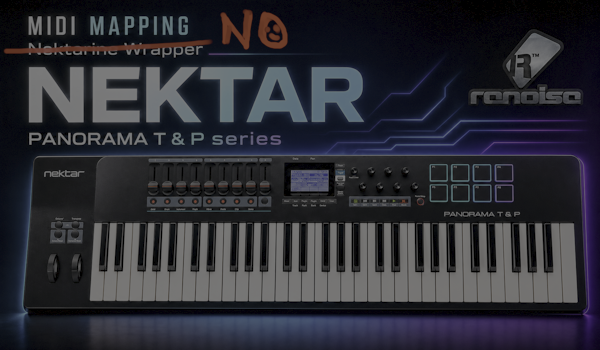
Universal Multi MIDI Mapping Center
Through continuous development and the implementation of Universal MIDI Learn, this tool has evolved far beyond its original Panorama integration. By featuring universal hardware input detection—interpreting Encoder DEC REL, Encoder ABS / REL, Fader Absolute (CC), Fader 14-bit (Pitch Bend), and various button modes—the tool acts as a true universal multi-MIDI mapping center. It effectively translates almost any controller’s physical data into intelligent, state-aware Renoise control.
MCU MIXER vs INTERNAL Mode
MCU MIXER Mode
Use this mode when the Panorama is working as a classic MCU-style control surface.
- No Renoise Ctrl+M mapping is required for main controls.
- Faders and encoders use the expected MCU behavior.
- LED/display feedback is handled entirely by the tool.
INTERNAL Mode
Use this mode when you want to control the tool from a custom Panorama internal preset.
- Uses Universal MIDI Learn inside the tool.
- Encoders can be learned as REL or DEC_REL controls.
- Faders learned as absolute Pitch Bend or MIDI CC.
Separated workflows operating together
The main GUI presents a DUAL MODE PAGE, which keeps encoder, fader, and button workflows functionally independent while allowing them to operate synergistically on the same screen.
FADERs Page Setup
Faders support two primary absolute MIDI input types: PB (Pitch Bend absolute fader, high-resolution 0-16383) and CC (MIDI CC absolute fader, 0-127).
- Mixer mode: FAD1-FAD8 automatically follow the current track bank to control track volume, while FAD9 controls the master or a dedicated master-style target.
- FADER mode: Each individual FAD slot can be uniquely assigned to a selected track, a specific DSP/send device, and an automatable parameter.
- FADER track targets establish the foundation for MUTE, SOLO, and mixer-style button behaviors (though they are deliberately not used for the Buttons ARM mode).
ENCODERs Page Setup
Encoders support three distinct interpreting modes: ABS (absolute normalized value), REL (relative delta plus absolute post-sync), and DEC_REL (decoder-relative, essential for Panorama internal continuous encoders).
- Track DSP mode: E1-E8 control selected DSP parameters on the currently selected Renoise track. The tool smartly stores an independent E1-E8 mapping per track.
- Instrument mode: E1-E8 map directly to host automation parameters of the active instrument.
- Master 1-3 modes: These act as independent global encoder surfaces. They can be persistently assigned to any supported track, DSP/send, and parameter targets across the whole song.
Buttons Page (B1-B8)
The buttons section features four main operational modes: ARM, MUTE, SOLO, and USER.
B1-B8 specifically control ENC1-ENC8 targets, sending flags directly to HYDRA SANITY for ARM/LEAVE intent.
Dynamically controls the mute or solo state for the tracks currently assigned to FAD1-FAD8.
During MIDI Learn, the tool automatically detects if your hardware button behaves as a Momentary switch or a Toggle switch based on release timing.
Tool Interface Modes
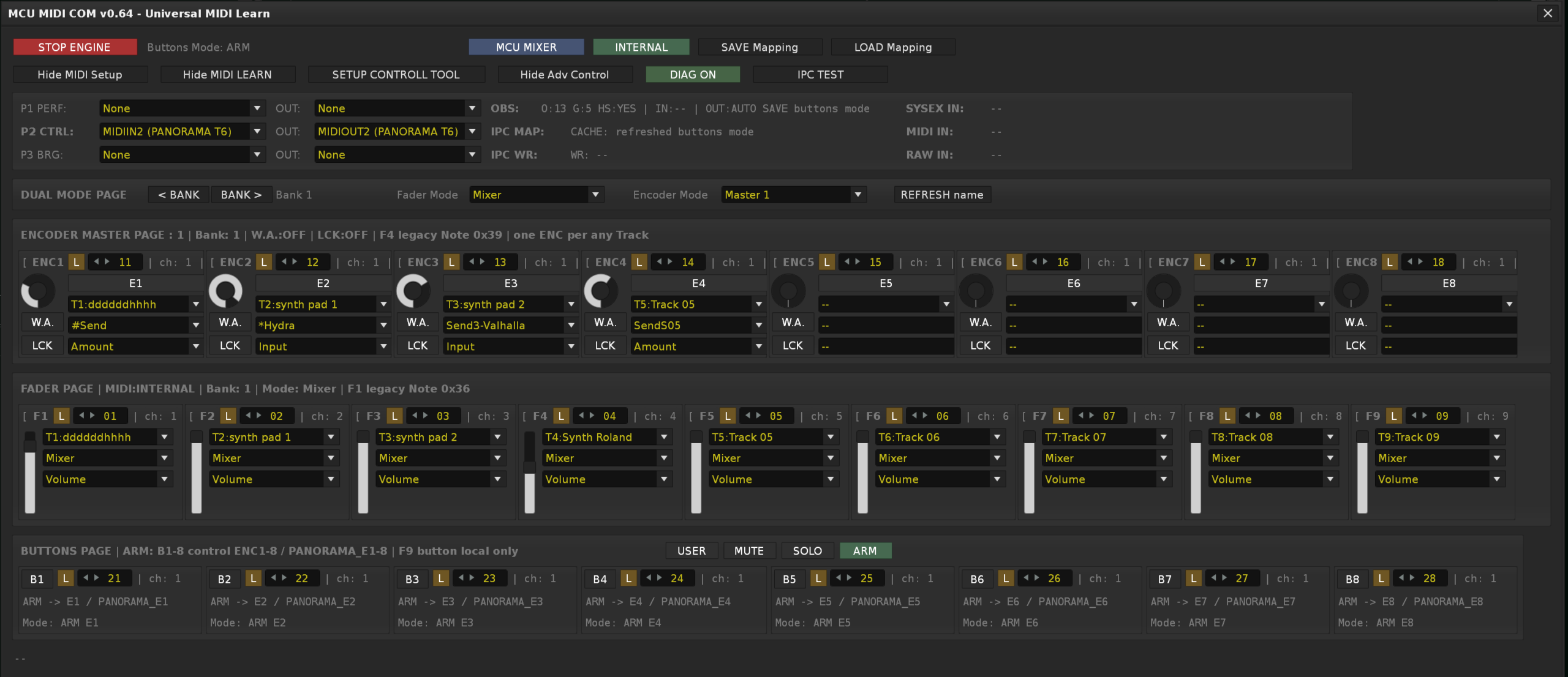
Setup & DIAG View
Detailed view for mapping hardware elements via Universal MIDI Learn. When DIAG is enabled, it displays detailed MIDI-IN activity (SYSEX, decoded MIDI, and RAW bytes).
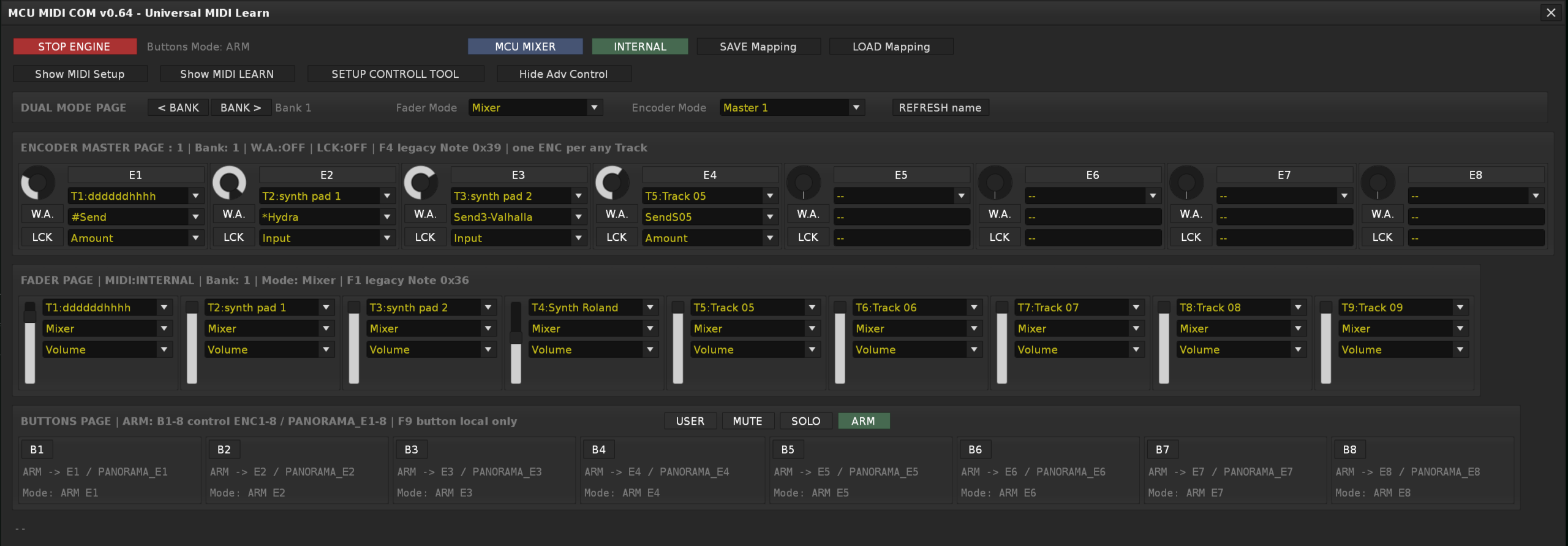
Slim “Performance” Layout
A compact interface focused on real-time visual feedback, hiding MIDI Learn configurations to keep CPU usage low during normal performance.
Write Automation to HYDRA SANITY
W.A. Target Validation
When the W.A. button is enabled, encoder movement is published to HYDRA SANITY as Panorama write data. The W.A. state is securely protected by a target-ready gate to prevent invalid packets from being transmitted.
LCK – Locked Link
LCK automatically validates and links the encoder. When locked, MCU_COM sends the `WALCK` flag to keep the HYDRA SANITY `PANORAMA_E#` row securely attached, even when moving across targets.
BANK 1-3 Controller Profiles
A BANK is not just a simple mapping offset; it represents the complete active controller context. Switching banks allows you to instantly swap your entire hardware profile seamlessly.
Each of the 3 Banks independently stores:
- Complete Encoder (ENC) mappings and Fader (FAD) mappings.
- Complete Button (B1-B8) assignments.
- The currently active operating modes for encoders, faders, and buttons (ARM, MUTE, SOLO, or USER).
- The critical W.A. (Write Automation) and LCK (Lock) states for ENC1-ENC8.
OSC IPC with HYDRA SANITY
Completes the migration to an OSC-only runtime bridge with HYDRA SANITY v8.30. Heavy payloads are replaced with compact flags (`WA_ON`, `ARM1`, `CB1`). OSC connections are hardened against stale handles and wrapped in safe callbacks.
1. MCU_COM sends first REL / DEC_REL event with SGA.
2. HYDRA reads the current automation graph value.
3. HYDRA sends absolute VALUE back to MCU_COM via OSC.
4. MCU_COM sets internal shadow to that value and applies DELTA.