Hydra Sanity Tool for Renoise DAW
Turn physical MIDI controls into precise, editable Renoise automation graphs.
HYDRA SANITY is a standalone real-time MIDI mapping and automation layer built around Renoise HYDRA DSP devices. It connects hardware encoders, faders, Pitch Bend, Aftertouch and buttons to instrument, mixer, DSP and plug-in parameters, then records the performance directly into native Renoise automation lanes.
HYDRA SANITY is designed for demanding sessions with high BPM and LPB settings. Instead of forwarding every incoming controller message directly to the Renoise API, it processes useful input at the current sequence and row position, protects the live recording value and avoids redundant automation points.
This keeps controller response immediate while several MIDI inputs and multiple automation graphs are processed in parallel.
A separate control layer for notes and automation
Independent MIDI handling
HYDRA SANITY includes its own MIDI MAPPER, separate from Renoise native MIDI Mapping. The same MIDI keyboard or controller can therefore remain available to Renoise for playing and recording notes, while HYDRA SANITY independently handles the encoders, faders, Pitch Bend controls and buttons assigned to automation.
Native Renoise result
Several automation targets can be recorded during the same performance pass without recording every track separately. The result remains a standard Renoise automation graph that can be viewed, redrawn and edited with the mouse at any time.
HYDRA SANITY extends the existing Renoise workflow instead of replacing it. The resulting automation remains directly connected to the controlled Renoise parameter and can be used immediately during playback or live performance.
HYDRA SANITY Quick Start
This compact workflow takes a new HYDRA SANITY setup from an empty Renoise track to the first hardware-controlled automation graph.
MIDI feedback and external clock devices
When the controller should receive value feedback or use CLK UP, configure the same hardware device in a HYDRA SANITY MIDI OUT slot and set its role to FB or BOTH.
Result
The performed control movement is written into the native Renoise automation lane. The graph remains visible, editable and directly connected to its Renoise target.
Turn a regular MIDI controller into a graph-aware automation surface
HYDRA SANITY extends a standard MIDI controller with automation behavior that the hardware itself may not provide.
ARM ON
ARM ON waits for the first intentional movement from the mapped MIDI ENC, DEC, FAD or PB control. That movement starts writing into the automation graph, changes ARM ON to STICKY, and keeps graph writing active after the hardware MIDI control is released.
STICKY
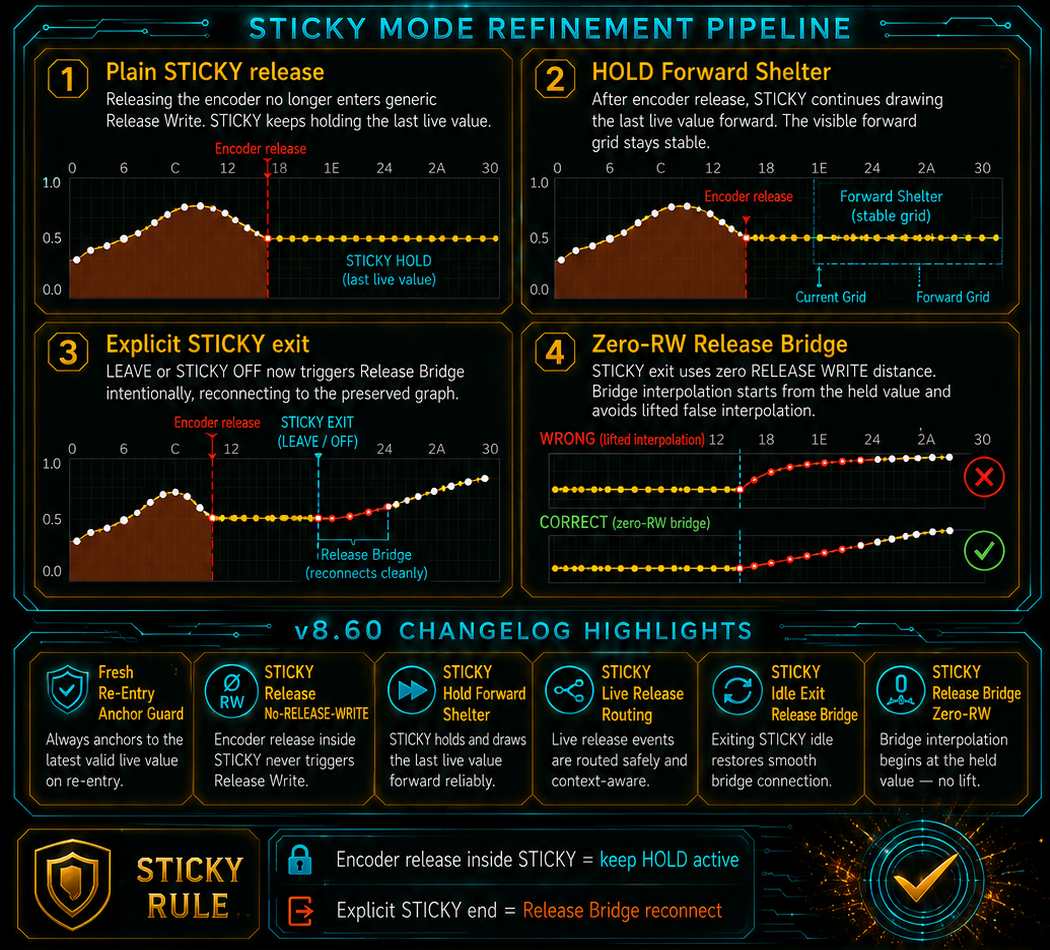
STICKY preserves and continues writing the last performed MIDI controller value after the physical control is released. Graph writing remains active until the mapped ARM ON / row-state button is pressed again. The row then enters LEAVE, releases graph ownership and returns to LATCH after reconnection.
Linking to Graph
Linking to Graph allows a relative ENC / DEC control to begin from the automation value stored at the current row position in the Renoise track, instead of from an unrelated physical position of the hardware controller. This is especially useful for real-time graph editing with REC ON and FOL ON enabled.
Why an endless relative encoder is useful
For this reason, an endless relative encoder is usually the most flexible choice. It has no fixed minimum or maximum physical position, can follow a value already stored in the graph and avoids sudden parameter jumps when switching between tracks, HYDRA Rows or automation targets.
Absolute knobs, faders and Pitch Bend controls remain fully supported when their physical position should directly represent the controlled parameter value.
Automatic MIDI control recognition
MIDI Learn automatically analyzes the movement sequence or button press-and-release pattern sent by the controller. HYDRA SANITY can distinguish supported absolute controls, relative encoder formats, Pitch Bend, MCU V-Pots and common button behaviors without requiring the user to configure the parser type or manually enter low-level MIDI parameters.
The result is a hardware-independent control layer. Even a conventional MIDI controller with absolute faders, knobs or encoders can operate as a more advanced automation surface that follows the current Renoise graph, waits for intentional input and maintains controlled ownership of the written value.
Recording, Playback and Prepared PAUSE Modes
The main Stage transport buttons determine whether Renoise records notes, HYDRA automation, both data types, or only plays the existing song safely.
REC N&A
REC Notes & Automation records incoming MIDI notes into the Renoise pattern while enabled HYDRA Rows write their automation graphs during the same performance pass.
REC Aut
REC Automation records HYDRA automation without writing the incoming performance notes into the Renoise pattern. Use it for automation-only overdubs.
PLAY — Safe Listen
PLAY provides normal listening without opening a new ordinary LATCH recording pass. Existing graph-processing tools such as compatible IRON or Sm operations can still work under their documented conditions.
PAUSE N&A
PAUSE N&A keeps the note-and-automation workflow prepared at the current starting position. With FOL ON, the first incoming Note On resumes playback and recording. A HYDRA Row waiting in ARM ON can also resume the prepared workflow from its first valid controller movement.
PAUSE Aut
PAUSE Aut keeps the automation-only workflow prepared. The first valid movement from a HYDRA Row waiting in ARM ON resumes playback and begins the automation pass without starting note recording.
Start recording only when the performer begins
HYDRA SANITY can keep a selected recording workflow prepared in PAUSE and start it only when the performer begins to play or moves an armed controller.
Start from ARM ON controller movement
When a HYDRA Row is set to ARM ON, the first valid movement from its mapped encoder, fader or Pitch Bend control automatically resumes the previously prepared recording mode.
REC Aut
REC Aut resumes playback and records one or more automation graphs without recording notes into the Renoise pattern.
REC N&A
REC N&A resumes playback and records both Renoise notes and HYDRA automation graphs.
The controller value that starts playback is not discarded. It becomes the first real automation value written into the graph, and the activated row changes from ARM ON to STICKY. Other rows waiting in ARM ON remain prepared until their own mapped controls are moved.
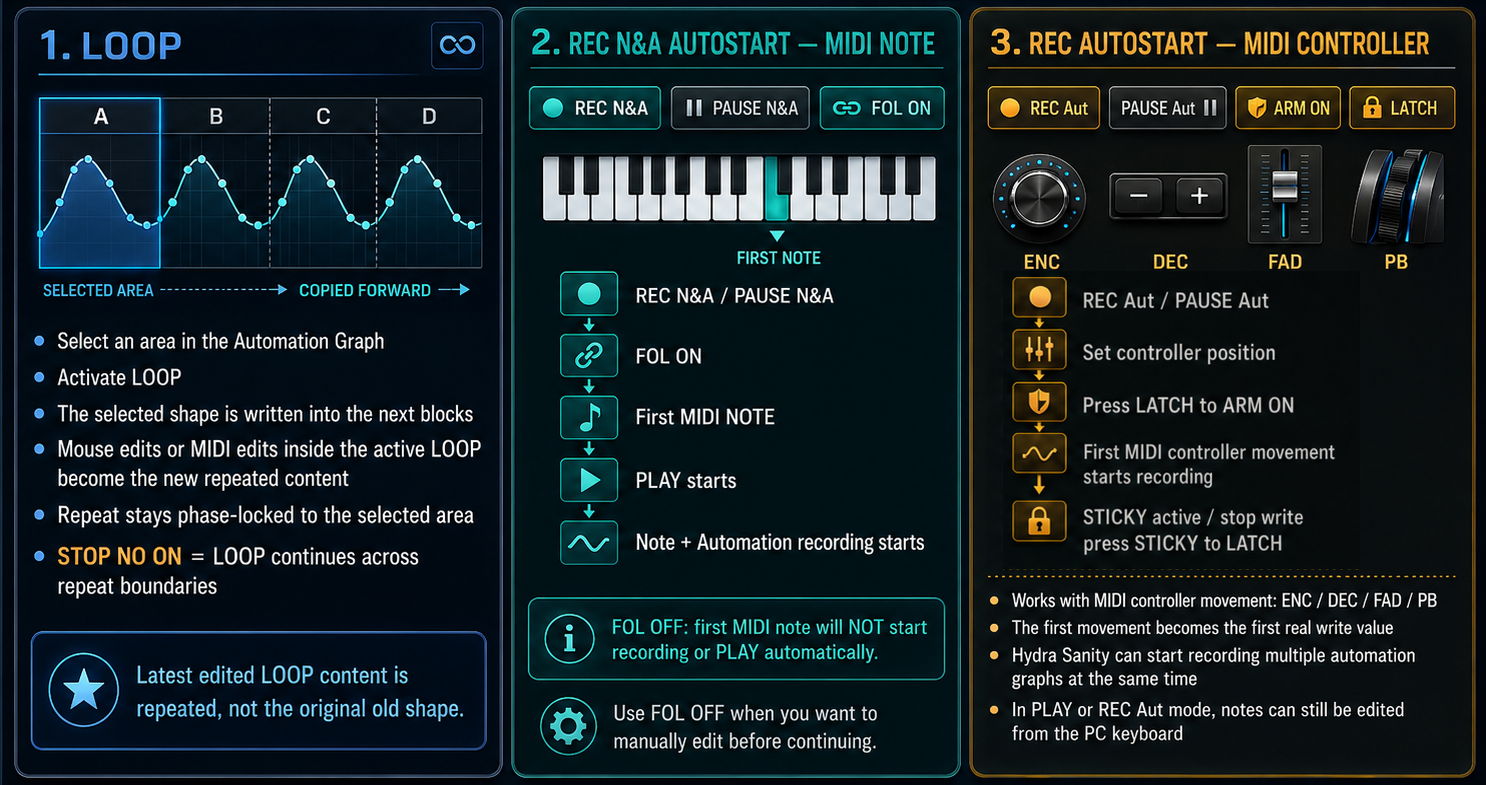
Start REC N&A with the first MIDI note — FOL ON enabled
A similar first-action principle is available for MIDI notes.
When REC N&A is waiting in PAUSE and FOL ON is active, the first incoming MIDI Note On automatically resumes playback and begins note recording together with the prepared automation workflow.
FOL ON corresponds to Renoise Follow Player and also enables first-note autostart for paused REC N&A.
With FOL OFF, an incoming note does not start the paused transport. This allows notes and pattern data to be edited manually without unintentionally beginning a new recording pass.
| Method | Prepared State | Trigger | Result |
|---|---|---|---|
| Automation controller start | PAUSE Aut or PAUSE N&A + ARM ON | First mapped controller movement | Playback resumes, row enters STICKY, first controller value is written. |
| First-note start | PAUSE N&A + FOL ON | First MIDI Note On | Playback resumes and Renoise records notes with prepared HYDRA automation. |
How to start from an external MIDI arpeggiator
Some external MIDI arpeggiators require not only continuous MIDI Clock pulses but also an active MIDI Start transport state.
Renoise can continue sending MIDI Clock while playback is paused, but entering PAUSE may also send a MIDI Stop message. In that situation, the external arpeggiator still receives clock timing but remains stopped and cannot generate the first arpeggiated Note On required for HYDRA SANITY’s prepared PAUSE N&A + FOL ON workflow.
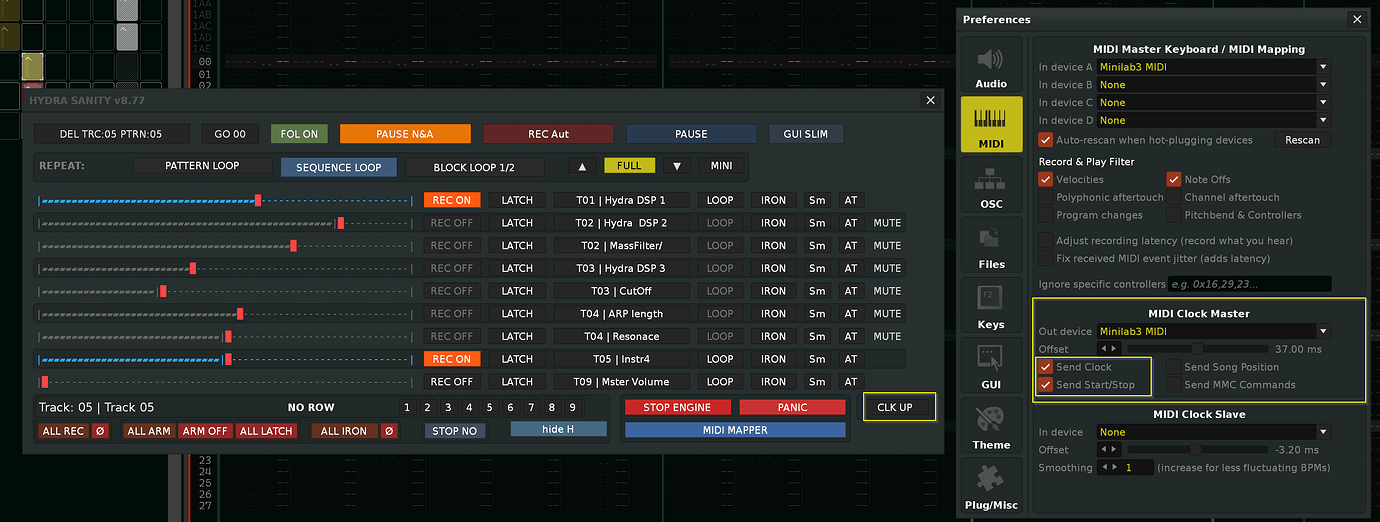
To keep the arpeggiator ready, enable CLK UP. When CLK UP is active, HYDRA SANITY takes control of the outgoing MIDI Start / Stop state for the configured hardware MIDI output.
If Renoise sends MIDI Stop while entering PAUSE, HYDRA SANITY restores the active MIDI Start state. The external arpeggiator therefore remains synchronized, ready and able to generate the first Note On that starts the prepared recording pass.
When CLK UP is needed
- the external keyboard or controller uses Renoise as its MIDI Clock source,
- the arpeggiator requires both Clock and Start/Stop transport state,
- REC N&A is prepared in PAUSE,
- FOL ON should allow the first generated Note On to resume recording.
Without CLK UP, the arpeggiator may remain stopped even though Clock pulses are still present.
Required setup
| Device or Application | Required Configuration |
|---|---|
| Renoise | Select the hardware MIDI device as the MIDI Clock Master output and enable Send Clock. Send Start/Stop may remain enabled. |
| External MIDI Keyboard or Controller | Install the current device firmware, enable the appropriate external clock synchronization mode and activate the arpeggiator. On the tested Arturia MiniLab 3 setup, use firmware 1.2 and select AUTO clock sync instead of forcing EXTERNAL-only synchronization. |
| HYDRA SANITY MIDI OUT | Configure the same hardware device in a MIDI OUT slot and set its role to FB or BOTH. |
| HYDRA SANITY Stage Buttons | Enable CLK UP. Enable FOL ON when the first incoming MIDI Note On should resume the prepared PAUSE N&A workflow. |

Arturia MiniLab 3 — Firmware and Clock Sync Mode
Some hardware devices require their own firmware and clock-source configuration before an external arpeggiator can work correctly with the CLK UP workflow.
For Arturia MiniLab 3, use current firmware that provides the AUTO clock-sync mode. In the tested setup, firmware 1.2 and clock synchronization set to AUTO allowed the internal arpeggiator to respond correctly to the Renoise MIDI Clock and HYDRA SANITY MIDI Start / Stop workflow.
Do not leave the MiniLab 3 arpeggiator forced only to EXTERNAL sync when that mode prevents it from assuming the required active transport state. Use AUTO so the device can correctly accept the available clock and transport information.
DEL TRACK, GO 00 and FOL ON
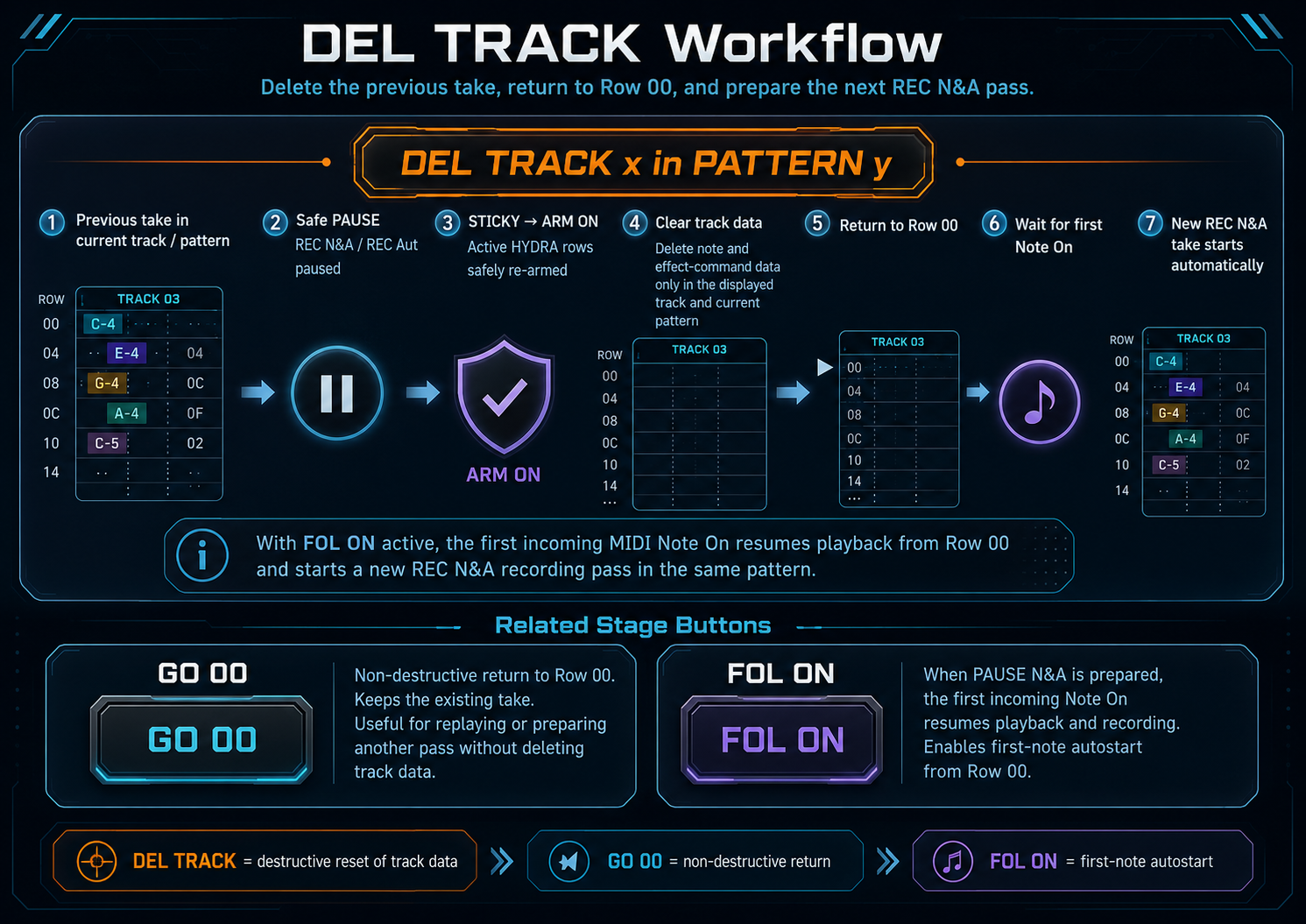
DEL TRACK x in PATTERN y, GO 00 and FOL ON form a connected Stage workflow for returning to the beginning of a pattern and preparing the next performance pass.
DEL TRACK prepares a protected replacement take, while GO 00 provides a non-destructive return. FOL ON allows the first incoming MIDI note to start a prepared REC N&A recording directly from Row 00.
DEL TRACK x in PATTERN y — Protected Take Reset
The button label identifies the displayed target track x and the current Renoise pattern y.
When activated, HYDRA SANITY first protects the active workflow, then clears note and effect-command data only from that target track inside the current pattern.
- active REC N&A changes to PAUSE N&A,
- active REC Aut changes to PAUSE Aut,
- active STICKY rows change safely to ARM ON,
- the target track’s note and effect-command data are cleared,
- the playback and editing position returns to Row 00,
- the preserved PAUSE workflow waits for the next intentional performance action.
The Renoise track, devices, HYDRA DSP assignments, HYDRA Rows, MIDI mappings and existing automation graphs remain unchanged.
With PAUSE N&A + FOL ON, the first incoming MIDI Note On resumes playback from Row 00 and starts a new REC N&A take in the same pattern.
With PAUSE Aut, the first valid movement from a HYDRA Row waiting in ARM ON resumes the automation-only recording pass.
GO 00 — Return Without Deleting
GO 00 returns the current Renoise working position to the first row of the current pattern.
Unlike DEL TRACK, GO 00 does not remove notes, effect commands, automation or the existing performance take. It is a non-destructive navigation command for returning immediately to a known starting position.
- replay the current pattern from Row 00,
- prepare another pass without deleting the previous take,
- return the edit and recording workflow to a predictable position,
- prepare Row 00 before resuming REC N&A or REC Aut.
GO 00 does not activate recording by itself. The next action depends on the prepared Stage state.
Understanding the HYDRA Row Control Principle
Each HYDRA DSP device added to a Renoise track creates a corresponding HYDRA Row in HYDRA SANITY.
A HYDRA Row represents one independent automation target. A single Renoise track can therefore contain several HYDRA DSP devices and several HYDRA Rows, with each row controlling a different instrument, mixer, DSP or plug-in parameter.
Each HYDRA Row can have its own MIDI assignments
- a continuous input such as ENC, DEC, FAD or PB,
- a REC ON / OFF button,
- a row-state button controlling LATCH, ARM ON, STICKY and LEAVE,
- optional MUTE / UNMUTE and SOLO controls.
This makes every automation target independently controllable from MIDI hardware, even when several HYDRA Rows belong to the same Renoise track.
REC ON / OFF
REC ON gives the HYDRA Row permission to perform normal live automation writing.
When REC ON is active, movement from the mapped controller can write values into the row’s automation graph.
REC OFF blocks normal live writing while leaving the row, its MIDI mappings and its existing automation graph available.
Controller movement can still activate the corresponding HYDRA Row, select its Renoise track and display the assigned automation graph. Clicking the already selected row can open the corresponding HYDRA DSP device.
REC ON / OFF therefore controls whether ordinary LATCH writing is permitted. It does not remove the row or disable its focus and navigation functions.
HYDRA Row State Cycle
- Press the row-state button in LATCH to activate ARM ON.
- Move the mapped controller to change ARM ON into STICKY.
- Press the row-state button again while STICKY is active to enter LEAVE.
- After the current controller gesture and graph reconnection are completed, the row returns to LATCH.
LATCH
LATCH is the normal immediate writing state and requires REC ON to be active.
While the mapped controller is moving, the row writes the performed values into the automation graph. When the physical control is released, HYDRA SANITY ends direct controller ownership and reconnects toward the preserved automation that follows.
Use LATCH when you want to make a temporary live adjustment without holding the new value indefinitely.
When REC ON should remain disabled, use ARM ON instead.
ARM ON
ARM ON prepares the row for the next intentional controller movement.
The row does not take control immediately. It waits until its mapped ENC, DEC, FAD or PB control is moved.
The first valid movement activates the HYDRA Row, changes ARM ON into STICKY, preserves the incoming controller value as the first real automation value, and can resume a prepared REC Aut or REC N&A workflow from PAUSE.
STICKY
STICKY keeps ownership of the automation value after the physical controller is released.
The last performed value remains active, and the HYDRA Row continues maintaining that value through the active automation-writing area.
STICKY remains active until the user presses the mapped row-state button again or until another supported safety or boundary rule changes the row state.
LEAVE
LEAVE intentionally ends STICKY ownership.
The state waits for the current ENC, DEC, FAD or PB movement to finish. HYDRA SANITY then reconnects from the last confirmed controller-written point to the nearest preserved future point in the automation graph.
The transition is interpolated so that the controlled parameter can return smoothly to the existing automation without an abrupt value jump.
After reconnection, the HYDRA Row returns to LATCH.
ARM ON and Linking to Graph
Linking to Graph can be enabled in the HYDRA SANITY MIDI MAPPER for the mapped continuous control of a HYDRA Row.
When this function is active, HYDRA SANITY reads the automation value represented by the selected Renoise graph at the current working position and uses that graph value as the starting reference for the next controller movement.
This is especially useful together with ARM ON. A HYDRA Row waiting in ARM ON does not take ownership immediately. It waits for the first intentional movement from the mapped control. With Linking to Graph enabled, that movement can reconnect to the existing automation value instead of beginning from an unrelated hardware position.
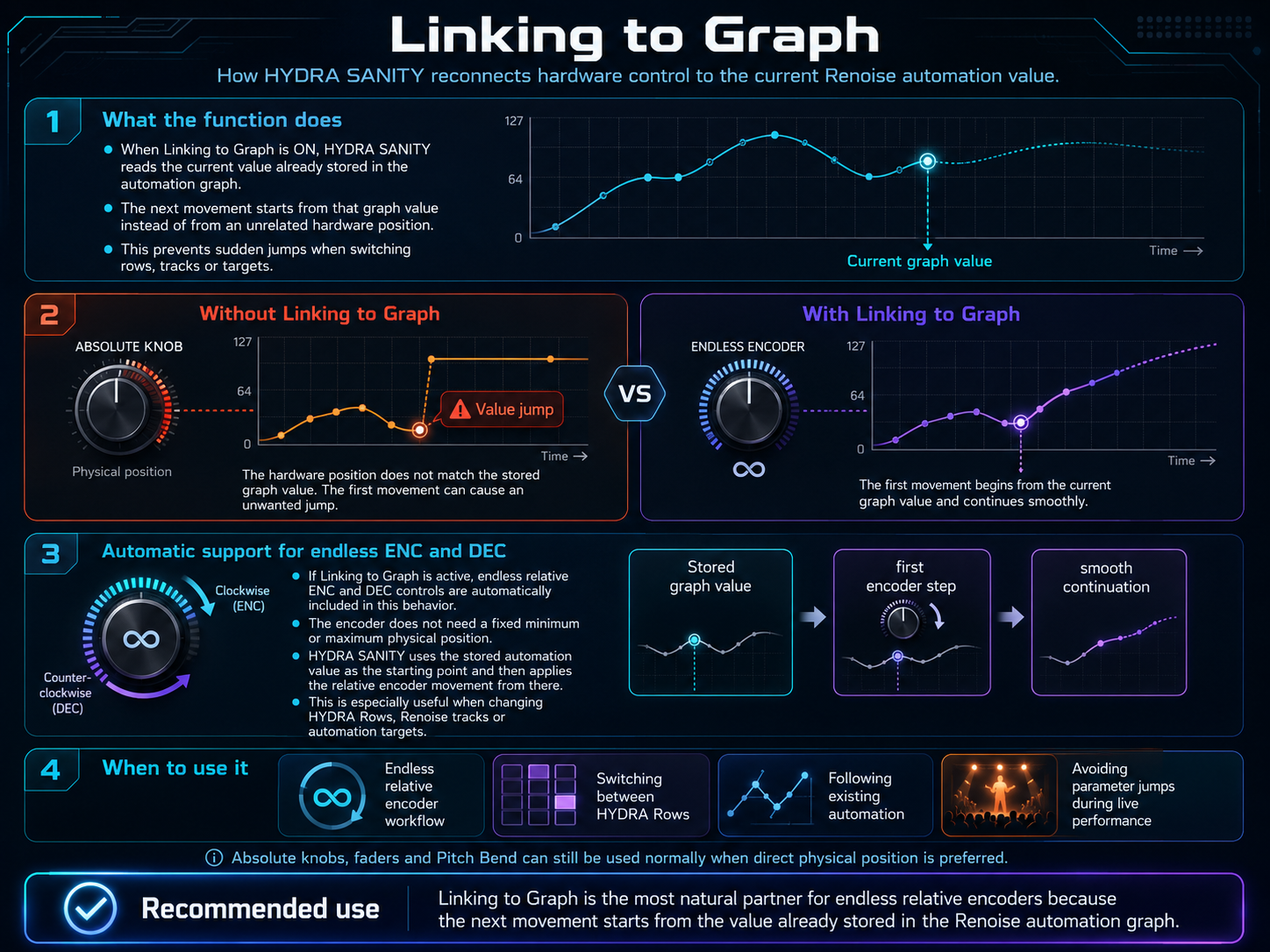
Automatic Support for Endless ENC and DEC
If Linking to Graph is active, learned endless relative ENC and DEC controls are automatically included in this behavior.
- the current graph value becomes the starting reference,
- the first relative encoder step is applied from that stored value,
- the following movement continues in the selected direction,
- and the encoder does not need a fixed physical minimum or maximum position.
This makes Linking to Graph the most natural partner for endless relative encoders. One physical encoder can follow different HYDRA Rows, Renoise tracks or automation targets without carrying an unrelated absolute position from the previously controlled parameter.
Practical Meaning During Performance
Without Linking to Graph, a newly selected target can begin from the physical value currently represented by an absolute knob, fader or another direct-position control. If that position differs from the automation graph, the first movement can produce an unwanted parameter jump.
With Linking to Graph enabled, HYDRA SANITY first reconnects the mapped control to the existing graph value. The first intentional movement then continues from that value, making target changes and ARM ON takeovers more predictable during recording and live performance.
Absolute knobs, faders and Pitch Bend remain supported when direct physical-position control is preferred. Linking to Graph is particularly beneficial for learned endless relative ENC and DEC controls.
One Track, Several Independent HYDRA Rows
- HYDRA Row 1 controlling an instrument filter or another instrument automation parameter,
- HYDRA Row 2 controlling a DSP effect parameter,
- HYDRA Row 3 controlling a mixer parameter.
Each HYDRA Row can have its own MIDI controller, REC state and row-state cycle. All three automation graphs can be written independently during the same performance pass.
A HYDRA Row is therefore not a copy of a Renoise track. It is an independent hardware-controlled automation path connected to one specific HYDRA DSP target.
MUTE, SOLO and HYDRA Row Safety
MUTE / UNMUTE
A short press of the row’s MUTE control toggles the corresponding Renoise track between audible and muted states.
While the track is directly muted or becomes effectively muted by another track’s SOLO state, HYDRA SANITY disables ordinary REC availability and prevents LOOP from taking ownership of that row.
The previous REC ON/OFF state is remembered. After the track becomes audible again, REC availability returns to its earlier state.
Activate SOLO by Holding MUTE
Press and hold the row’s MUTE button to activate or release SOLO for that Renoise track.
Other tracks that become indirectly muted by SOLO receive the same HYDRA safety protection as a directly muted track.
When SOLO is released, affected rows become available again. LOOP is not restarted automatically; the performer must activate it again deliberately.
STOP NO and Repeat Boundaries
The STOP NO button determines whether an active STICKY state is allowed to continue when Renoise playback crosses a repeat or backward transport boundary.
This rule applies to supported Renoise repeat modes: Pattern Loop, Sequence Loop, Block Loop, song repeat or another supported backward playback boundary.
STOP NO does not enable or disable these Renoise repeat modes. It controls only how HYDRA SANITY continues automation ownership when playback returns to an earlier position.
STOP NO enabled — STICKY continues
When STOP NO is enabled, STICKY remains active across the repeat boundary.
The HYDRA Row continues to own the automation graph and maintains the last performed controller value after Renoise returns to the beginning of the repeated Pattern, Sequence or Block.
This is useful when a live automation value should continue without interruption through several repeated passes.
- A HYDRA Row enters STICKY.
- The mapped controller is released.
- Renoise reaches the end of the active repeat area.
- Playback returns to the beginning.
- STICKY remains active and continues maintaining the performed automation value.
STOP NO disabled — STICKY returns to ARM ON
When STOP NO is disabled, HYDRA SANITY waits until the next supported repeat or backward boundary.
- STICKY ownership ends,
- the HYDRA Row changes safely to ARM ON,
- the row stops continuing the STICKY value through the next repeated pass,
- and the row waits for a new intentional movement from its mapped controller.
The existing automation graph remains available. The next valid movement from the mapped ENC, DEC, FAD or PB control activates the row again, changes ARM ON back to STICKY, and uses the incoming controller value as the first value of the new automation-writing pass.
| STOP NO State | Boundary Transition | Practical Result |
|---|---|---|
| Enabled | STICKY → repeat boundary → STICKY | The live value and graph ownership continue through the repeated Pattern, Sequence or Block. |
| Disabled | STICKY → repeat boundary → ARM ON | The previous continuous ownership ends. The row waits for the performer to move the mapped control again. |
Relationship to LOOP, Sm and IRON
With STOP NO enabled, compatible continuing HYDRA modes can remain active across supported repeat boundaries.
With STOP NO disabled, the next supported boundary ends continuing HYDRA ownership. Active STICKY changes to ARM ON, while continuing LOOP, Sm and IRON processing is turned off.
HYDRA Row in the STAGE Interface

HYDRA Row Graph and Input Tools
Each HYDRA Row includes additional tools for repeating, repairing and smoothing its automation graph, together with optional Aftertouch control.
⟳ LOOP — Repeat a Selected Automation Range
The ⟳ symbol represents the HYDRA automation-graph LOOP function.
LOOP does not repeat the whole Renoise Pattern automatically. It works with a range selected directly inside the Renoise Automation Editor.
- Open the required automation graph.
- Select a valid grouped range of automation rows.
- Activate the ⟳ button on the corresponding HYDRA Row.
- Start REC Aut or REC N&A.
- HYDRA SANITY repeats the selected automation content forward through the active recording area.
The selected range defines the LOOP length and phase. HYDRA SANITY keeps that phase aligned while playback continues through Pattern, Sequence, Block or song-repeat boundaries.
Latest Completed Content Becomes the Next Source
The original selection defines the size and position of the LOOP, but the repeated values do not have to remain permanently identical.
A completed repeated block can be changed by a mapped ENC, DEC, FAD or PB controller, or direct mouse editing inside the Renoise Automation Editor.
After the edited block has been physically completed, its latest content becomes the source for the following repeated block.
The LOOP therefore continues from the latest completed performance or mouse-edited version instead of repeatedly restoring only the original selected values.
Empty rows in the source range clear the corresponding rows in the repeated target area. This prevents old automation points from remaining behind.
LOOP Availability and Conflicts
If the Automation Editor selection is cleared, collapses or becomes invalid, LOOP is deactivated, the ⟳ button returns to its available OFF state, and ordinary ENC, FAD or PB automation writing remains available.
LOOP cannot own the same HYDRA Row at the same time as STICKY or Sm. An effectively muted or SOLO-muted Renoise track also disables LOOP.
≈ IRON — Repair Automation Defects
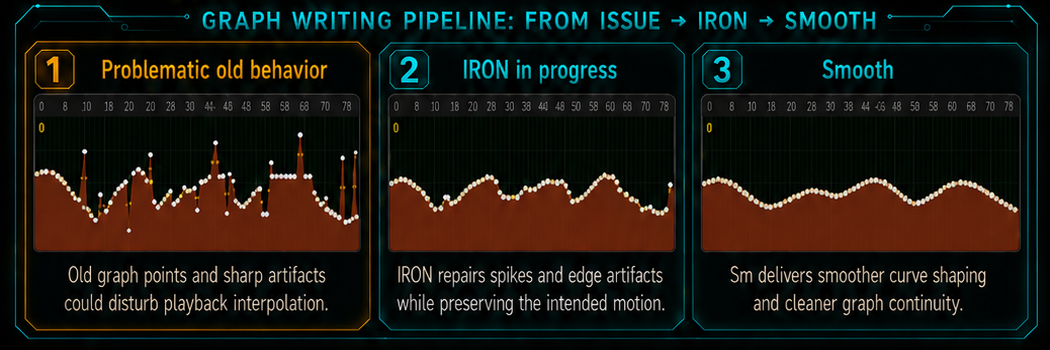
IRON repairs short spikes, sudden cliffs, edge artifacts, isolated graph shots and abrupt transitions produced during live editing.
IRON attempts to preserve the intended musical movement while removing the unwanted defect.
IRON can process an existing automation graph during PLAY even when REC ON is disabled. It does not begin a normal live-writing pass, activate LATCH or STICKY, start Release Bridge or create a new automation lane.
Sm — Smooth the Automation Curve
Sm makes an existing automation movement softer, less stepped, more rounded and more continuous.
IRON repairs local defects and unwanted artifacts. Sm reshapes the broader automation curve into a smoother movement.
Sm can process an existing graph during PLAY with REC ON disabled. Sm and LOOP cannot control the same HYDRA Row at the same time.
AT — Aftertouch Input
AT enables Channel Pressure and Polyphonic Key Pressure for the selected HYDRA Row.
Aftertouch values are normalized to the full automation range and routed only to HYDRA Rows where AT is enabled.
The Aftertouch path is separate from ordinary ENC, FAD, Pitch Bend and button mappings. When several supported inputs arrive in the same pending window, Aftertouch receives the highest input priority for the AT-enabled row.
HYDRA SANITY Workflow Guides
HYDRA SANITY GUI SLIM Overview
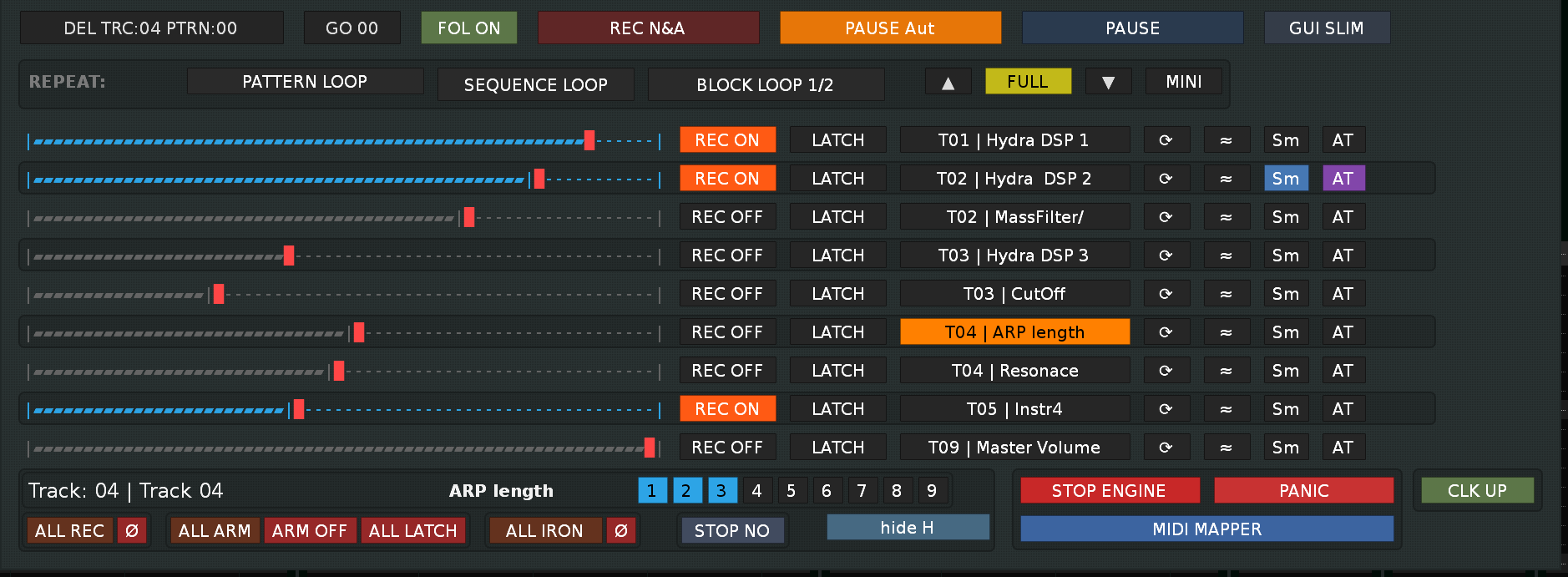
The SLIM view presents a compact performance layout where each HYDRA Row remains immediately accessible during live work.
When you add a HYDRA DSP device to a Renoise track, HYDRA SANITY automatically creates a new corresponding HYDRA Row. Each row represents one independent automation target and can keep its own MIDI assignments for controller input, REC behavior, row-state control and optional helper buttons.
This allows several HYDRA Rows to exist on the same Renoise track while still remaining independently controllable from the MIDI hardware.
Live Value Meter
The meter on the left side of the HYDRA Row provides immediate visual feedback during performance.
- the current value of the assigned automation parameter in the Renoise automation graph,
- the incoming value from the mapped MIDI controller,
- and during active playing, a short peak hold indication of the last highest reached value.
This makes the meter useful both as an automation-value display and as a live controller-response indicator.
Main HYDRA Row Elements
- Value Meter — current automation and controller value with peak indication,
- REC ON / OFF — enables or blocks ordinary live writing,
- LATCH / ARM ON / STICKY / LEAVE — current row-state stage,
- Target Name — assigned Renoise automation target,
- ⟳ LOOP, ≈ IRON, Sm Smooth, AT Aftertouch.
Target Name Behavior
Click the target name once to select and display the assigned Renoise automation graph.
Click the same already selected target name a second time to open the corresponding HYDRA DSP device.
Moving the mapped controller can return focus back to the automation graph through HYDRA autoswitch.
Why SLIM Is Useful
The SLIM layout keeps the essential live controls visible without unnecessary detail, especially when several HYDRA Rows must remain available at once.
HYDRA SANITY GUI FULL and Row Navigation
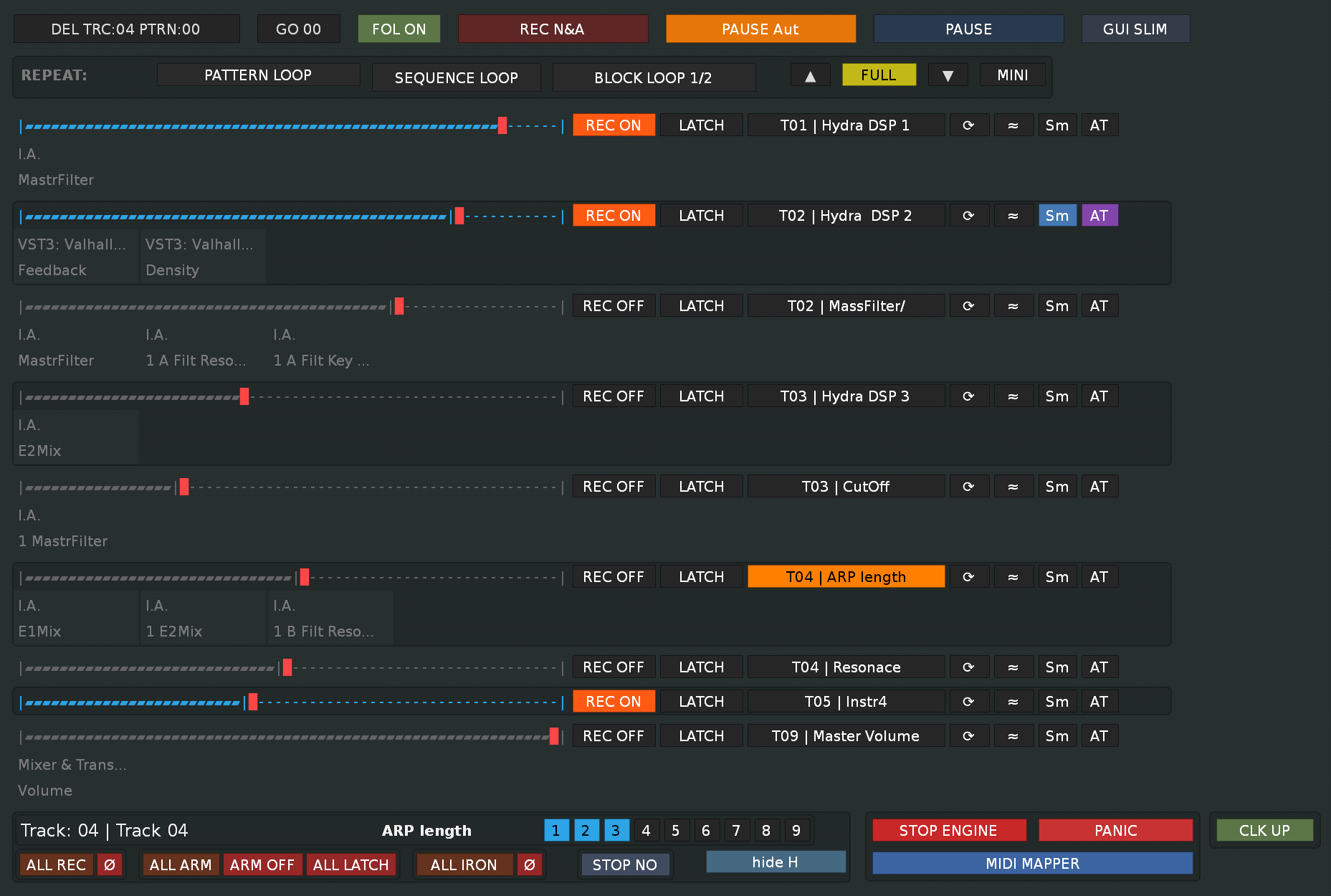
The FULL view expands each HYDRA Row with detailed information about the connected Renoise HYDRA DSP device and its assigned outputs.
While SLIM focuses on essential performance controls, FULL is intended for configuration, verification and detailed work with several automation targets.
HYDRA DSP Output Details
Each expanded HYDRA Row can display the available HYDRA DSP OUT 1–9 assignments according to the current Renoise HYDRA DSP configuration.
- the HYDRA DSP output number,
- the Renoise track containing the HYDRA DSP,
- the destination device,
- the controlled parameter,
- and whether the output is currently assigned.
This makes it possible to verify the complete signal and automation path directly from HYDRA SANITY without repeatedly opening every HYDRA DSP device in Renoise.
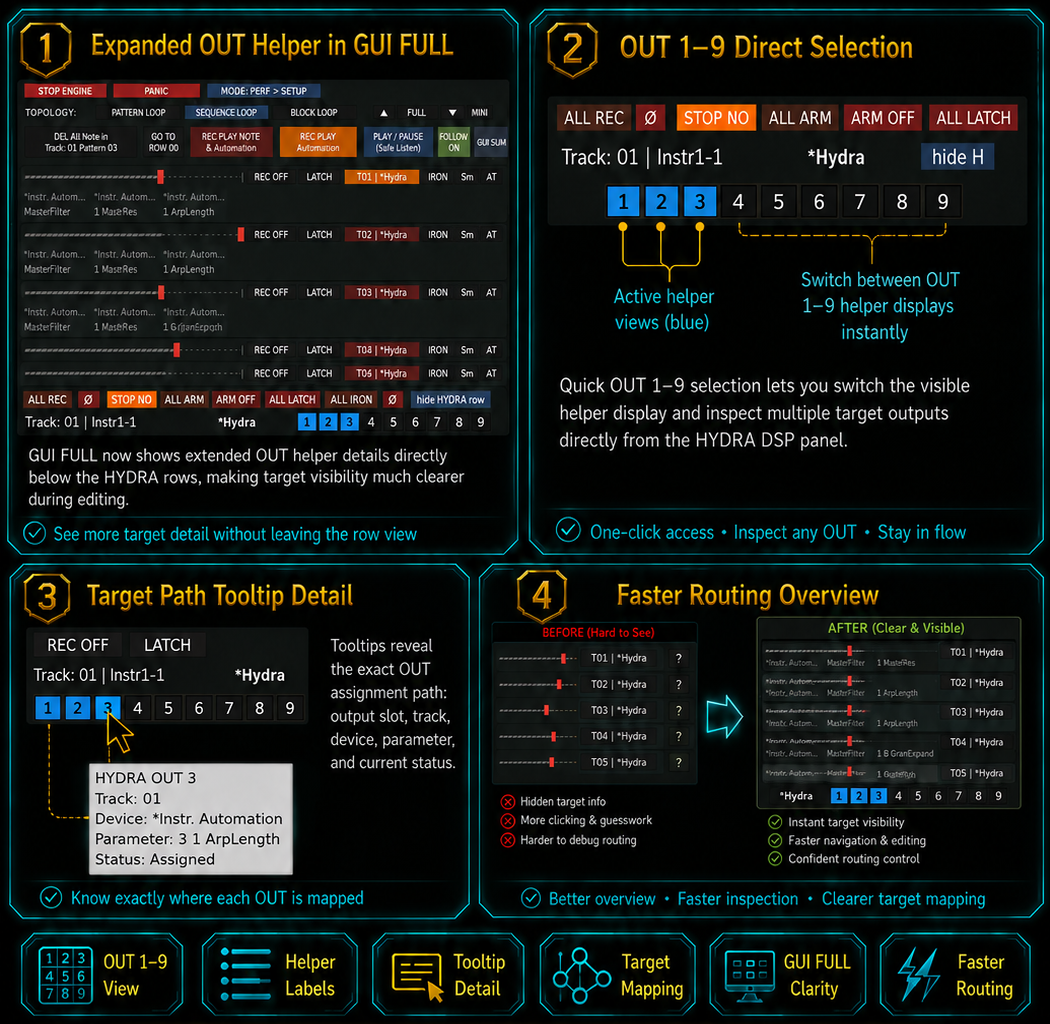
FULL
FULL displays the complete HYDRA Row together with detailed HYDRA DSP output and target information. Use it when preparing the song, checking HYDRA DSP OUT assignments or troubleshooting a target.
SLIM
SLIM keeps the main row controls visible while hiding most extended routing details. Use it during recording or performance when several HYDRA Rows should remain visible.
MINI
MINI reduces the GUI to one currently active HYDRA Row. The row follows mapped ENC, DEC, FAD or PB movement, REC ON / OFF, the row-state button, direct row selection or the corresponding known Renoise automation target.
Row Count and Navigation Arrows
The up and down arrow buttons between FULL and MINI adjust the visible row range.
- reduce the GUI height to fewer visible rows,
- expand the GUI to the maximum practical number of rows on screen,
- move through additional HYDRA Rows that do not currently fit.
This prevents a large song from creating an unnecessarily tall GUI while preserving access to every HYDRA Row.
Bidirectional DAW Focus
HYDRA SANITY controls Renoise focus
Selecting a HYDRA Row can display its assigned Renoise automation graph. Selecting the same active target again can open its HYDRA DSP device. Moving a mapped controller can return focus to the known automation target through HYDRA autoswitch.
Renoise controls HYDRA SANITY focus
Selecting a known Renoise track, device, parameter or automation target can activate the corresponding HYDRA Row. MINI follows the active known HYDRA or supported PANORAMA target so the currently relevant control row remains visible.
When a new HYDRA DSP is added during an open session, HYDRA SANITY can create the corresponding new HYDRA Row without requiring the complete Stage setup to be rebuilt.
Renoise REPEAT Control Row

The dedicated REPEAT row provides direct access to supported Renoise playback-repeat modes from the HYDRA SANITY interface.
These controls operate Renoise transport topology. They are separate from the ⟳ LOOP button inside an individual HYDRA Row, which repeats a selected range from one automation graph.
REPEAT buttons define where Renoise playback returns.
The HYDRA Row ⟳ button repeats selected automation-graph content.
Pattern Loop
Pattern Loop repeats the currently active Renoise pattern. This boundary is recognized by HYDRA SANITY so STOP NO can decide whether active STICKY and compatible continuing graph modes remain active or are released.
Sequence Loop
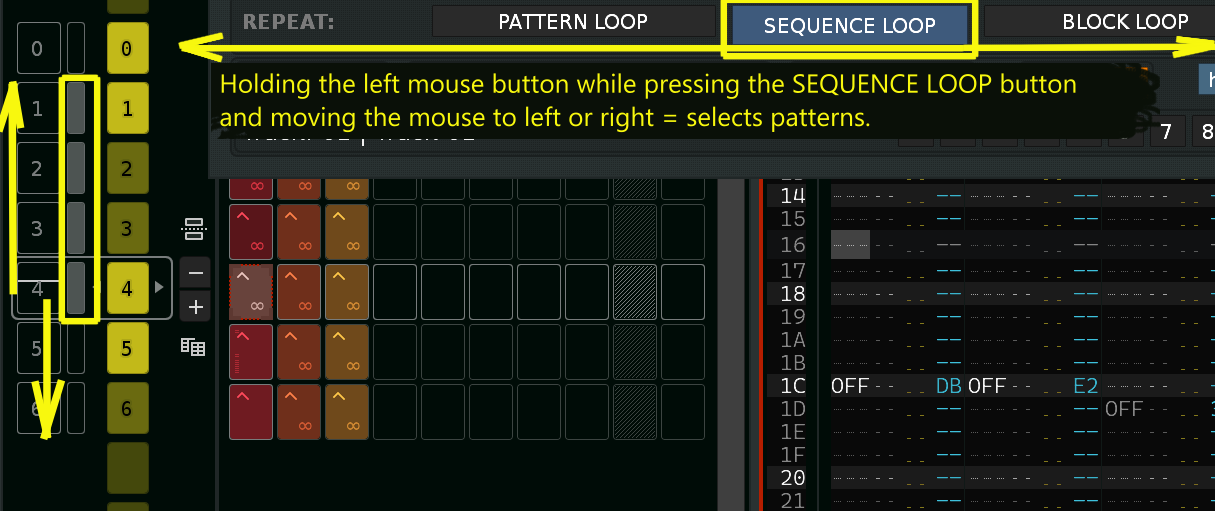
Sequence Loop repeats one or more selected sequence slots. Short click toggles the current slot. Hold and drag right or left to extend, drag back to reduce, and release to keep the visible range.
Block Loop
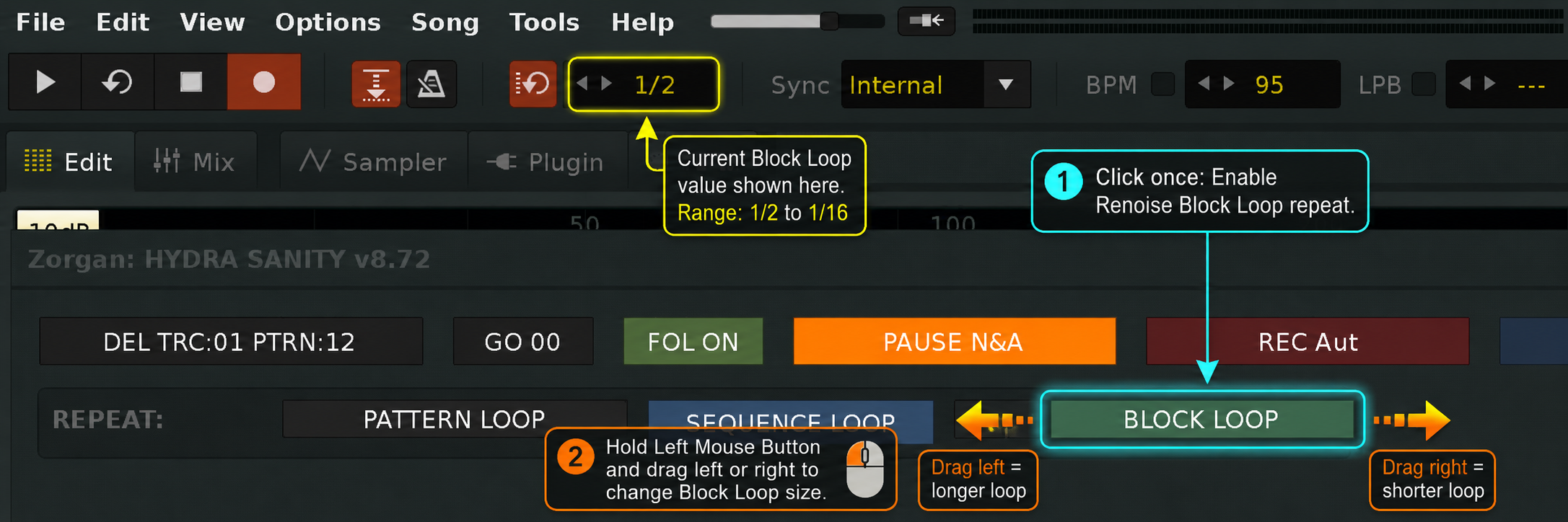
Block Loop repeats a selected fractional section of the active Renoise pattern. Hold and drag to change between larger and smaller pattern fractions.
REPEAT Controls and HYDRA Automation
Pattern Loop, Sequence Loop and Block Loop determine where Renoise playback returns. They do not themselves write or copy automation.
- STOP NO enabled allows STICKY and compatible continuing modes to survive the boundary,
- STOP NO disabled releases continuing HYDRA ownership at the next supported boundary.
The ⟳ LOOP button remains a separate automation function.
Bulk HYDRA Row Controls

Bulk controls make large HYDRA setups practical during preparation and live work. They apply a defined operation across the currently available HYDRA Rows while preserving each row’s target and MIDI assignments.
Main bulk operations
- ALL REC — enables or disables ordinary REC permission across available rows,
- ALL ARM — prepares available rows to wait for their next intentional controller movement,
- ARM OFF — releases the bulk ARM preparation,
- ALL LATCH — returns applicable rows to their normal immediate LATCH state,
- ALL IRON — applies the supported IRON processing state across available rows.
Muted, SOLO-muted or otherwise protected rows continue to obey their safety restrictions.
MIDI MAPPER, STAGE / TRAVEL Profiles and SWAP HW

HYDRA SANITY’s MIDI MAPPER is independent from Renoise native MIDI Mapping. It can learn the hardware controls used for HYDRA Row input, REC, row-state operation, MUTE and SOLO while the keyboard remains available to Renoise for normal note performance.
STAGE Profile
Use STAGE for the main studio or live-performance controller setup, including the full set of encoders, faders, buttons and MIDI feedback assignments.
TRAVEL Profile
Use TRAVEL for a smaller mobile controller or an alternate hardware layout. The profile can keep different MIDI assignments for the same HYDRA Rows and automation targets.
SWAP HW
SWAP HW switches between the stored STAGE and TRAVEL hardware profiles. The Renoise song structure, HYDRA DSP routing and HYDRA Row targets remain unchanged while the active physical-control assignments are exchanged.
Practical MIDI setup
- select the required MIDI IN device,
- learn INPUT, REC, row-state, MUTE and SOLO controls,
- configure MIDI OUT and use FB or BOTH when feedback or CLK UP is required,
- return with BACK TO STAGE.
Native Renoise Show GUI mapping
Map Renoise Show GUI only to a momentary button. Do not assign a continuous control such as a Mod Wheel, Pitch Bend, fader or encoder, because repeated values can continuously reopen or redraw the interface.
RESET ALL CC removes HYDRA SANITY’s learned controller assignments; it does not remove Renoise native MIDI mappings.
Which MIDI Controls Can HYDRA SANITY Learn?
HYDRA SANITY MIDI Learn analyzes the messages produced by the physical control while it is being moved, pressed and released. The user does not have to select a low-level parser type manually. HYDRA SANITY distinguishes supported absolute controls, relative encoder formats, Pitch Bend, pressure input, button behavior and MCU-compatible encoder communication from the received MIDI sequence.
Absolute Knobs, Encoders and Faders
Standard absolute MIDI CC controls can represent the physical position of a knob, encoder, fader or expression pedal across the available automation range.
Use an absolute control when its current hardware position should directly represent the controlled Renoise parameter value.
Relative ENC / DEC Controls
Endless relative encoders send direction and movement increments instead of one fixed physical position. HYDRA SANITY recognizes supported relative formats and can use Linking to Graph so movement begins from the value already stored in the Renoise automation lane.
This is the preferred control type when one encoder must follow several tracks, HYDRA Rows or parameters without sudden value jumps.
Pitch Bend and Continuous Performance Input
Pitch Bend can be learned as a continuous HYDRA Row input and normalized across the automation range. Other supported continuous CC controls, including expression pedals, can be used in the same performance-oriented role.
Buttons, PADs and Footswitches
A button assignment does not have to come from a conventional fixed-value switch. A velocity-sensitive MIDI PAD can also be learned and used as a button.
The PAD may send a Note On message with different velocity values and a Note Off or release message. For a learned button function, HYDRA SANITY evaluates the press-and-release behavior as the trigger; the PAD does not need to send one fixed velocity such as 127.
This makes PADs suitable for REC, row-state, MUTE, SOLO and other supported Stage button assignments.
Aftertouch
Channel Pressure and Polyphonic Key Pressure can control HYDRA Rows where AT is enabled. Pressure values are normalized to the full automation range and remain separate from ordinary ENC, FAD, Pitch Bend and button mappings.
MCU V-Pots and MCU Controller Mode
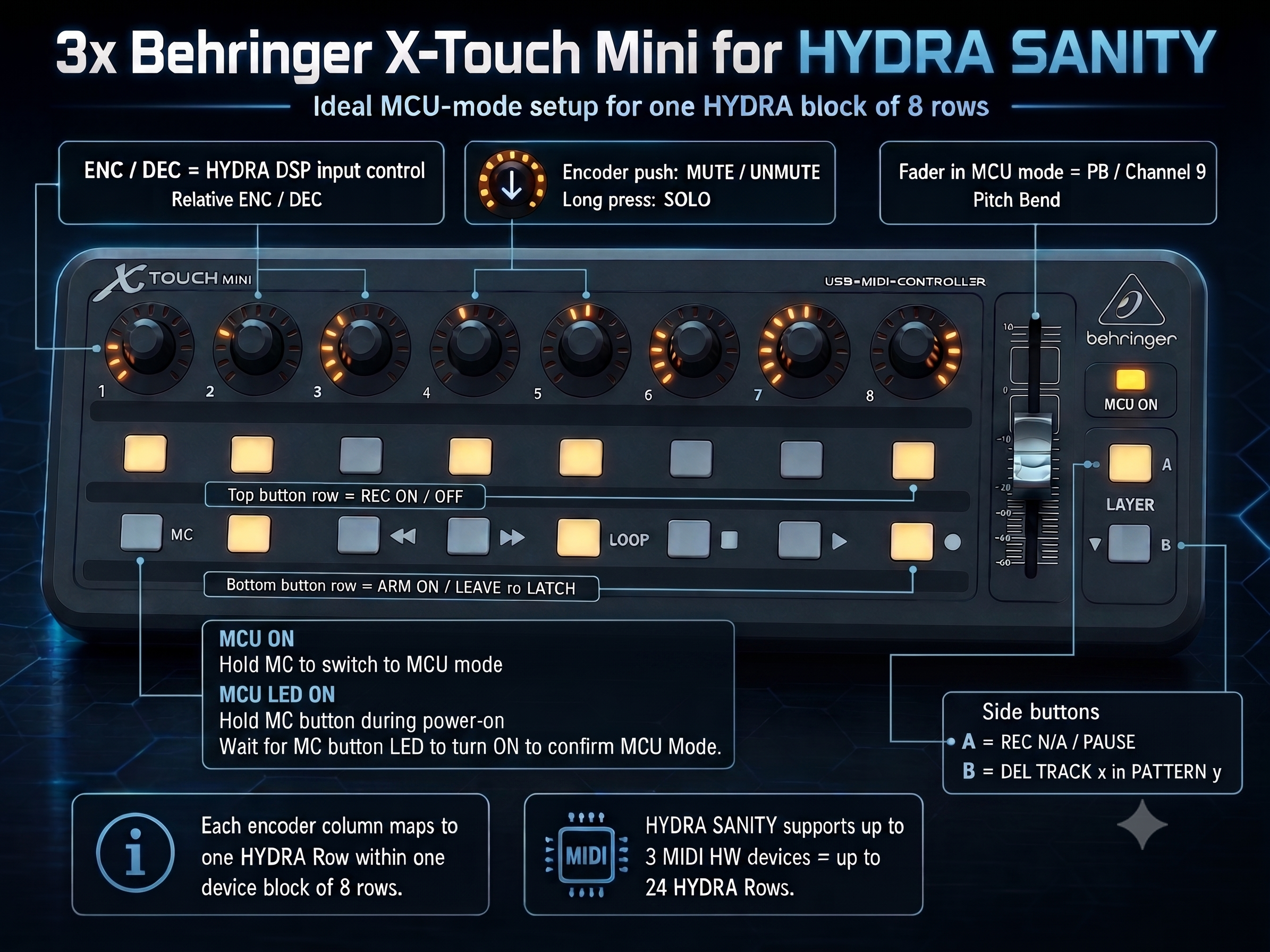
HYDRA SANITY recognizes supported MCU-compatible V-Pot communication, relative encoder behavior and MCU button messages. When the hardware controller is switched to MCU MODE ON, the supported MCU communication mode is detected automatically during MIDI Learn. The user does not need to select a separate low-level MCU parser manually.
The controller can therefore remain in MCU mode while its V-Pots, buttons and compatible feedback functions are assigned to HYDRA SANITY.
MCU Ring LED and Button LED Feedback
A supported MCU controller can receive visual feedback from HYDRA SANITY. Encoder-ring LEDs can follow the current controlled value, while button LEDs can show the active recording and row states directly on the hardware surface.
For hardware feedback to work, configure the same MCU controller in HYDRA SANITY as both the MIDI input and a MIDI OUT device. In the MIDI OUT configuration, enable MIDI feedback by selecting the FB or BOTH role.
| HYDRA SANITY State | MCU Hardware Feedback | Meaning |
|---|---|---|
| PAUSE N&A | REC N&A button LED flashes | The note-and-automation recording workflow is prepared and waiting for its next start trigger. |
| PAUSE Aut | REC Aut button LED flashes | The automation-only recording workflow is prepared and waiting for controller movement or another valid start action. |
| REC ON | REC ON LED remains steadily lit | The corresponding HYDRA Row is permitted to perform ordinary live automation writing. |
| ARM ON with REC ON inactive | ARM ON LED flashes | The row is prepared for the next intentional controller movement even though ordinary REC ON writing is not active. |
| Mapped MCU V-Pot | Ring LED follows the current controlled value | The hardware ring provides visual feedback for the assigned HYDRA Row or supported target. |
| Physical Control | Typical MIDI Behavior | HYDRA SANITY Use |
|---|---|---|
| Absolute knob, encoder, fader or expression pedal | Absolute MIDI CC value | Direct continuous parameter and automation control. |
| Endless relative encoder | Relative direction and increment messages | ENC / DEC control with graph-aware value pickup. |
| Pitch Bend wheel or strip | Pitch Bend message | Continuous full-range automation input. |
| Button, PAD or footswitch | CC or Note press-and-release sequence; PAD velocity may vary | REC, row-state, MUTE, SOLO or another supported button action. |
| Keyboard pressure | Channel Pressure or Polyphonic Key Pressure | AT-enabled HYDRA Row automation input. |
| MCU V-Pot or MCU button | Supported MCU relative encoder, button and feedback messages | Automatically detected MCU-mode control with encoder-ring and button LED feedback when MIDI OUT feedback is configured. |
STOP ENGINE, PANIC and Stage Navigation
STOP ENGINE
Stops HYDRA SANITY’s active runtime processing when the automation-control layer must be halted deliberately. Existing Renoise song data and automation graphs remain stored in the song.
PANIC
Provides an immediate safety action for a controller or performance state that no longer behaves as expected. Use it to recover from a stuck live-control situation before continuing the session.
MIDI MAPPER
Leaves the Stage view and opens hardware assignment, MIDI device and profile controls.
BACK TO STAGE
Returns to the performance interface and restores the previously used FULL or SLIM layout instead of forcing an unrelated GUI mode.
MCU MIDI COM and PANORAMA Control Rows
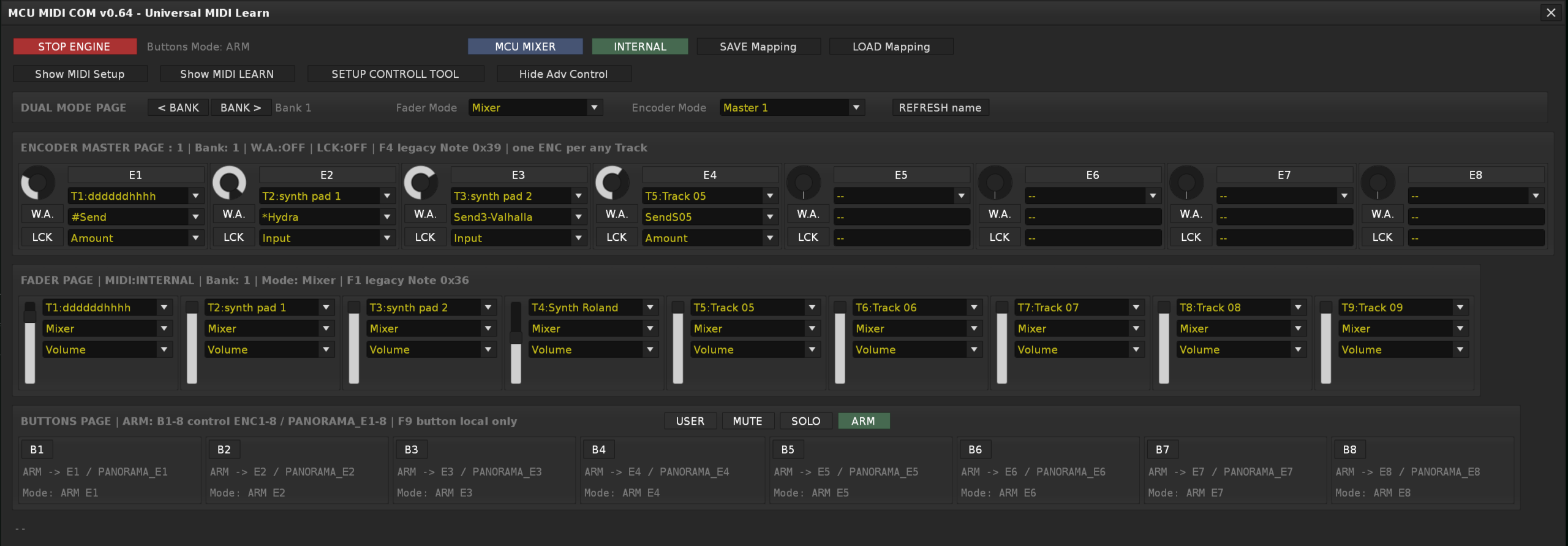
HYDRA SANITY can also participate in advanced controller workflows built around MCU MIDI COM and supported PANORAMA rows.
These integrations extend the same target-aware principle used by ordinary HYDRA Rows:
- the active Renoise target can select the corresponding known controller row,
- encoder movement can follow the currently selected track, device or parameter,
- supported hardware feedback can update encoder rings, LEDs or displayed control states,
- duplicate or unavailable targets remain subject to the integration’s protection rules.
This advanced layer is optional. Standard HYDRA DSP rows, MIDI Learn and native Renoise automation remain fully usable without MCU or PANORAMA hardware.